

Emotion badge program
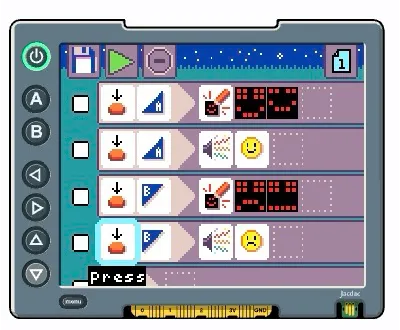
Emotion badge program
The emotion badge program consists of four When-Do rules:
The first two rules fire on the press of the m-A button. The second two rules fire on the press of the m-B button. The first and third rules display animations of happy and sad faces. The second and fourth rules play happy and sad sounds.
The first rule reads as: “When there is press of the m-A button, show two LED images”.
You can run the program in one of three ways:
d-Am-A or m-B button on the micro:bitmenu button on the display shieldThe micro:bit will indicate the program is running by a quick circular animation on the LED display.
The program will continue to run until
If you remove the micro:bit from the shield and power it via battery or USB, the last program you edited in MicroCode will begin to run.
Plugging the micro:bit back into the shield, you can continue to edit the program (it is saved automatically after each edit operation):
edit button on the home page.Now run your modified program!
Let’s do one more edit:
You have added a new image to the animation sequence.